
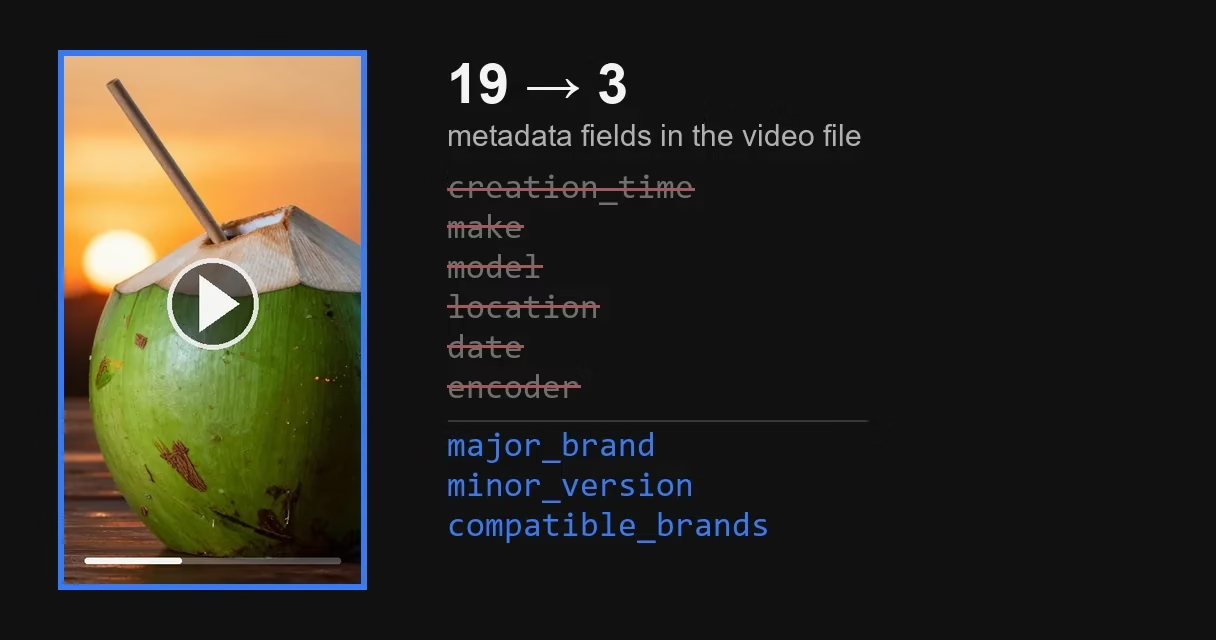
You shot a video on your phone. Along with the frames, the file stores the date it was recorded. Every video in the open dataset we analyzed, shot in 2015-2017, has it. One in four also has coordinates. Apple devices record the make and model as well.
On YouTube, metadata means a video’s title, description and tags in YouTube Studio; this article is about the technical fields inside the file.
You can remove metadata from a video with one command:
ffmpeg -i input.mp4 -map_metadata -1 -fflags +bitexact -c copy output.mp4
Replace input.mp4 with the name of your video, and output.mp4 with the name of the new copy.
This removes every field the phone wrote about the recording. It also removes the signature of the program itself, and there is no quality loss. The file still won’t be empty; what stays in it is covered below. If you’d rather not work in a console, there is our program. The steps for it are in the section on how to change video metadata.
How to run it. Type the commands below in PowerShell, the Windows command window. Click Start, type “powershell” and open the app it finds. You need one free program, FFmpeg 19. It can also be installed with a command:
winget install --id Gyan.FFmpeg -e
Then close the window and open it again. Type ffmpeg -version: PowerShell will reply with the version number. If you get a “not recognized” message instead, download the build archive from gyan.dev 21. Unpack it: ffmpeg.exe is inside, in the bin folder. Instead of ffmpeg, type the & sign and the full path to that file in quotes, for example & "D:\ffmpeg\bin\ffmpeg.exe". Without &, PowerShell won’t run a path in quotes.
Next, go to the folder with your video. Copy its path from the File Explorer address bar and type cd "path". To see what is recorded in your video, run ffprobe -show_format -show_streams video.mp4. The ffprobe program is installed together with FFmpeg.
On a Mac, all of this is done in the Terminal app. FFmpeg is installed via Homebrew with brew install ffmpeg 22. The commands themselves are the same. The loop for a whole folder is different; it is given below. Our recipe for checking a folder is written for PowerShell only.
Why remove metadata from a video
You remove metadata from a video so that the coordinates, the device make and the recording date don’t travel with the copies other people receive. A video shot at home carries the coordinates of your home.
Cleaning the fields doesn’t stop anyone from recognizing the content. On a Russian-language forum, in an argument about making a video unique by screen recording, metadata gets confused with content: “what does metadata have to do with it if the video is recorded all over again? the pixels won’t match either since the picture gets transmitted differently. it will definitely be unique, tested!” 1. That argument was never settled. What matters for our topic is something else. Metadata, a checksum and an image fingerprint are three different things.
Video Unique Booster for Windows: hundreds of unique copies in one goBy hand, you edit copy after copy. The program creates them in batches. Each copy gets its own image, sound, metadata and duration.
Video Unique Booster: video uniquification for WindowsYou add a video and set the setting ranges. The program creates hundreds of copies. Each has its own image, sound and duration.
Hundreds of unique copies from one original videoThe manual way runs into one problem. Each copy has to be edited separately. More copies take more time.
Unique video copies for TikTok, YouTube and InstagramYou set the setting ranges once. Then the Windows program creates copies in batches. Hundreds in one go.
Video uniquification for Windows – Video Unique BoosterYou add one video. The program creates hundreds of copies. Each has its own image, sound, metadata and duration.
What video metadata is and what’s inside MP4 and MOV
Many articles answer this question with the word EXIF. That is an answer about photos: video files are structured differently.
Data in MP4 and MOV files sits on three levels.
Level one: container identification. The fields major_brand, minor_version, compatible_brands. They record the standard the file was built to.
Level two: capture description. This level holds the recording date (creation_time), the make (make), the model (model) and the coordinates (location). This is what people call metadata.
Level three: track tags. Each track has its own handler name handler_name and its own muxer tag. The encoder field appears on two levels at once. In a track, it’s the codec. Next to the capture description, it’s the OS version or the program name.
We took 235 untouched videos from 35 devices and counted the fields. These are all the untouched videos from the part of the open dataset 12 that we have on disk. Each device is represented by several scenes. The full dataset has 648 untouched videos. Some of the measurements below were made on a second dataset, from a research paper 4. It takes its footage from the first one, so all the videos come from the same source.
The videos in the dataset were shot in 2015-2017. The newest iPhones in it are the 6 and 6 Plus. So we analyzed a 2026 recording from an iPhone 15 Pro separately. Where it behaves differently, we say so. The measurements were made in September 2026.
Here is what we counted:
| Field | Videos out of 235 |
|---|---|
major_brand, minor_version, compatible_brands | 235 |
creation_time (recording date) | 235 |
Apple fields com.apple.quicktime.* | 86 |
coordinates: location or its Apple variant | 59 |
make and model (make and model) | 58 |
encoder | 58 |
com.android.version | 63 |
A video has from four to nineteen fields. Half of the videos have five or fewer. We counted this spread before removing duplicates. Ten videos appear in the dataset twice, and the count covered 245 files.
In our 2015-2017 dataset, only Apple devices write the make and model as regular fields. Android recordings have no such fields at all. We did not check how current Android devices write them.
On Apple devices, the encoder field next to the capture description holds the iOS version, not a program name. In all 58 videos where it is filled in, its value matched the OS version field. This number and the number “thirty” below were re-measured on 228 videos.
The track handler name shows what made the file. Core Media Video appears in 86 videos: that’s footage from an Apple device. VideoHandle, without the last letter, appears in 144 videos. But only 63 of them have the Android version tag, and the rest have no make in the fields at all. VideoHandler, with the letter at the end, usually means the file has been remuxed. But not always: the only Microsoft device in the dataset has it in all five of its videos.
The longest list is nineteen fields. Thirty videos shot on Apple devices have it.
Of the nineteen fields, eleven are repeats. Five pieces of information are written several times. The device writes the date four times. The make, model, location and OS version, three times each. A repeat here is every entry after the first. That’s why there are sixteen entries but eleven repeats. The string +43.7901+011.2202+044.736/ is latitude, longitude and altitude: 44.7 meters above sea level.
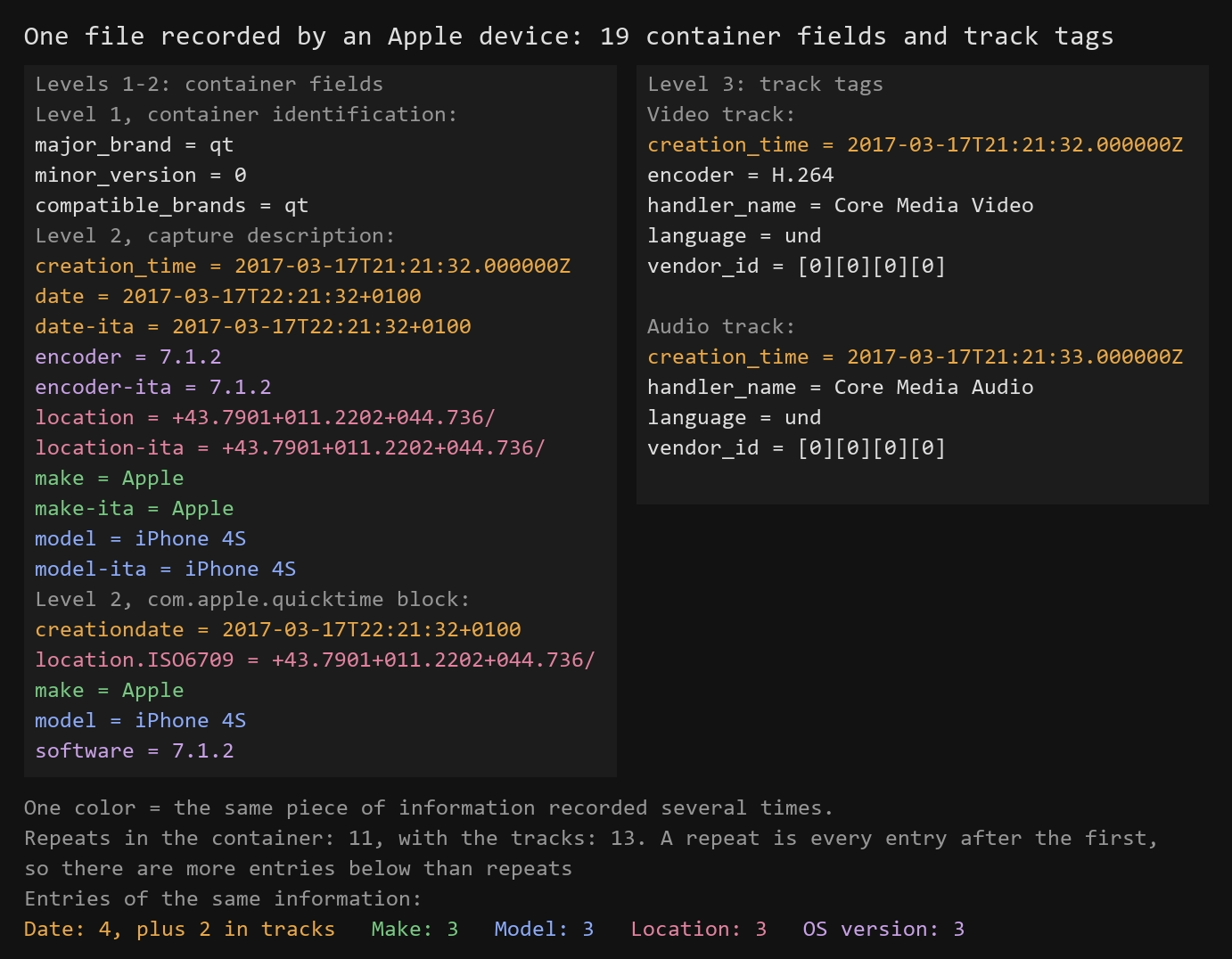
The -ita suffix marks the same entry tagged with the device’s language. The phone keeps the com.apple.quicktime block separately. Hence the three make entries.
How to view video metadata
There are three ways, from the simplest to the most precise.
Windows File Explorer. Right-click the file, choose Properties and open the Details tab. We checked the File Explorer columns for three videos: from an iPhone 4S, an iPhone 15 Pro and a Xiaomi. Only one of the columns is about the capture: “Media created”. The make, model and coordinates are not among the columns, even though they are recorded in the files. The iPhone videos have all three, the Xiaomi video has the coordinates.
MediaInfo. A free program 17. We tested its command-line version 26.05 on the same three videos. For all three, it reported the coordinates, in the “Recorded location” line. For both iPhones, it also named the device: in the “Make” and “Model” lines for the iPhone 4S, in the “Writing hardware” line for the iPhone 15 Pro. We did not open the version with a window.
Console analysis. ffprobe -show_format -show_streams video.mp4 19 shows the container fields and the track tags. ExifTool 20 reads more. For the iPhone 15 Pro, it found the camera name with the device model in the track description. That name is not in the ffprobe output. Neither tool sees the hidden copies in old iPhones described below. The measurements for this article were taken with a script built on the PyAV library 18, which reads the same container.
Three ways to remove metadata from a video
Method 1. Windows File Explorer
Select the files. Right-click them, choose Properties and open the Details tab. At the bottom of the tab there is a “Remove Properties and Personal Information” link.
We tested what this link can remove on three videos with coordinates: from an iPhone 4S, an iPhone 15 Pro and a Xiaomi running Android. Both iPhone videos also contain the make and model. File Explorer reads and writes video properties through the Windows property handler. The link removes only what that handler supports. First, we tried to erase through the same handler everything it marks as writable. Then, on copies of the iPhone 4S and Xiaomi videos, we clicked the link itself. In the dialog that opened, we chose “Remove the following properties from this file” and clicked “Select All”.
For the iPhone videos, the handler has two writable properties: the recording date and the video orientation. The make, model and coordinates are not among them. The handler would not let us erase the date, so none of the capture details were removed. For the Xiaomi video, the coordinates are added to the list. We could not erase them: after saving, they were still there. Only the date in the file header was erased.
The link gave the same result. On the iPhone 4S video, Windows responded with the error “The property is read only.” and the code 0xC00D3E8E. Not a single byte of the file changed. On the Xiaomi video there was no error, but the coordinates stayed in place. Again, only the date in the header was erased, and a new service box appeared in the file.
Conclusion: neither the link nor its handler removed the make, model or coordinates from our videos. Of the capture details, File Explorer shows only the date, so that is the only thing you can check with it.
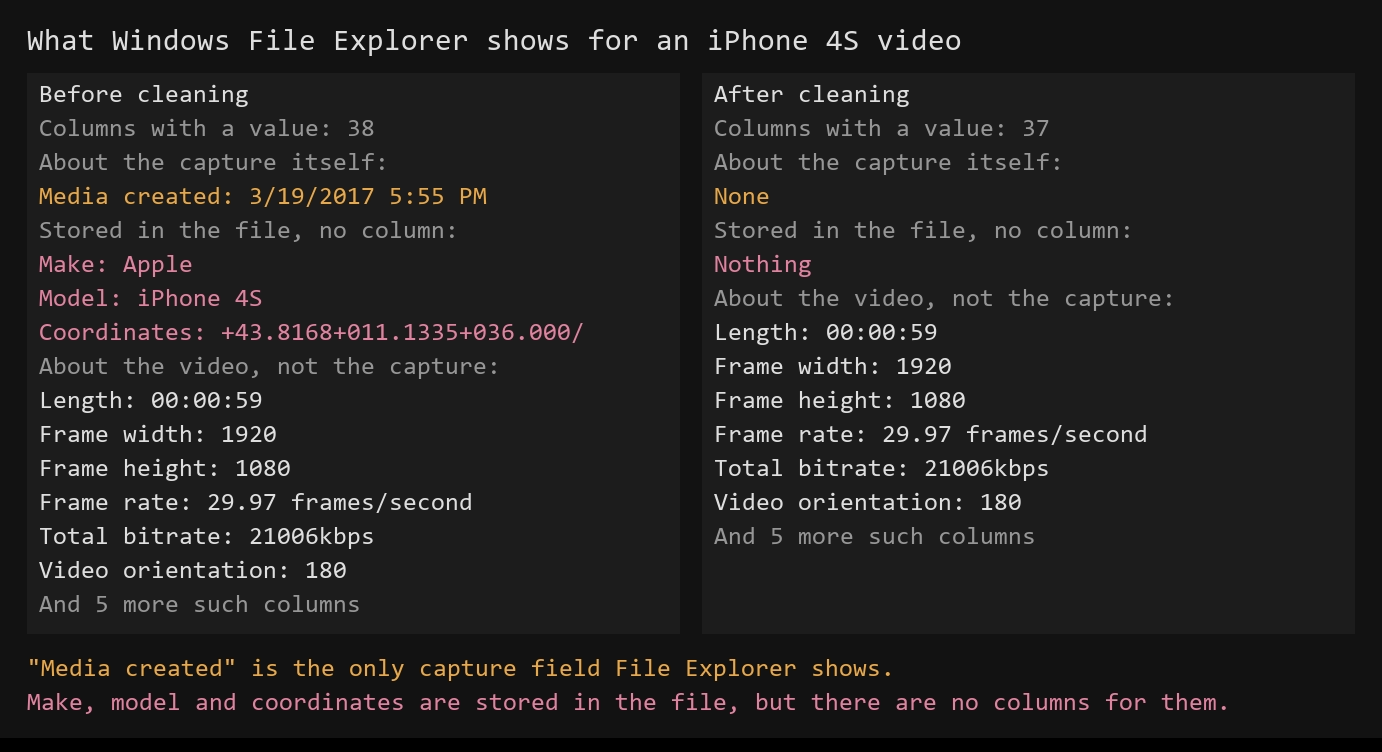
The image shows the File Explorer columns for an iPhone 4S video, before cleaning and after the command from the third method. Before cleaning, there are thirty-eight columns with a value. Exactly one of them is a capture field: “Media created”. The make, model and coordinates are recorded in this file, but there are no columns for them. After cleaning, the capture field is gone from the list.
The other columns have nothing to do with the capture. They are the name, file size, owner, path, and drive and folder details. There are also details about the video itself, such as the length, frame size and frame rate, total bitrate and video orientation. File Explorer reads them from the file’s content.
Method 2. exiftool
A free command-line tool 20. For Windows, it downloads as an archive. Unpack the whole archive and rename the file exiftool(-k).exe to exiftool.exe. The exiftool_files folder must stay next to it. In PowerShell, run it from the folder that contains exiftool.exe and put .\ in front of the name. The command:
.\exiftool.exe -all= video.mp4
Replace video.mp4 with the full path to your video in quotes.
We ran it on the same three videos, with exiftool version 13.59. This command removes the description fields in all three, including the QuickTime tags and the Apple block. On our three videos, a 2022 complaint that QuickTime tags are left behind 3 was not confirmed.
Three things remain. The first is the recording date in the file header. The exiftool command doesn’t touch it in any of the videos. The second thing that remains is the Apple track names: Core Media Video and Core Media Audio still point to the device. The iPhone 15 Pro video also keeps an entire Apple metadata track. The third thing that remains concerns old iPhones. Inside the box that holds the frames, they keep one or two copies of the description. These copies are neither shown nor erased by exiftool, and ffprobe doesn’t see them either. In the iPhone 4S video after cleaning, a byte search found the model, make, coordinates and OS version.
We checked 105 videos from the open dataset 12. All 39 iPhone and iPad videos had such copies. The 10 videos of other makes with coordinates don’t have them, and neither does the iPhone 15 Pro recording.
Method 3. FFmpeg
The most thorough method. The file is rebuilt from scratch, and the old fields are not carried over.
ffmpeg -i input.mp4 -map_metadata -1 -fflags +bitexact -c copy output.mp4
The program is free. More commands are in our article making videos unique with FFmpeg (in Russian).
The -map_metadata -1 option means “take no fields from the source”. The -fflags +bitexact option keeps the program from writing its own signature into the container fields. The -c copy option means “copy the tracks as they are”. The video and audio are carried over bit for bit. Without -c copy, the file is compressed again and the quality drops.
On the same three videos, the command removed all the device fields and zeroed the date in the file header. It did not carry over the hidden copy in the old iPhone video: a byte search of the finished files found neither the model nor the coordinates.
We measured the speed with a command that has only the first option. It processed twenty untouched videos, 1.5 gigabytes in total, in 4.9 seconds. A hundred similar videos would take about twenty-five seconds.
| Method | What it removes | What remains | How to process a whole folder |
|---|---|---|---|
| Windows File Explorer (tested through the property handler and by clicking the link) | for the iPhone, none of the capture details; for the Xiaomi, the date in the header | almost all the capture details, including the coordinates | by selecting the files |
| exiftool | the description fields | the date in the header, the Apple track names; in old iPhones, a copy of the fields inside the box with the frames | with your own loop, not given in this article |
| FFmpeg | all the device fields, the date in the header and its own signature in the container | the three container identification fields, the service track names; in MOV, the muxer tag in the track | with a loop |
Can you remove metadata from a video on your phone
On a phone, it’s easier not to record the coordinates than to delete them later. According to Apple, the location is recorded in photos and videos only if the camera has access to Location Services 15. To turn it off, open Settings, then Privacy & Security, Location Services, Camera, and choose Never. On Google cameras, the same is done by the Save location toggle in the camera’s own settings 23; other makes call it something else. We did not shoot iPhone videos with this setting: this comes from the help pages.
We tested an Android 14 phone of our own. We shot two short videos: one with location tagging and one without. We transferred them to a computer as files, without compression. Neither video has coordinates: no location box, no coordinates field. Both contain only the recording date and the OS version. So this phone doesn’t write the location into the video file even with location tagging on. The older devices in our dataset behaved differently: the 2017 Xiaomi video has the coordinates in the file itself. So it’s worth checking your own phone: shoot a short video and open it on a computer in MediaInfo.
For a video that has already been shot, we have no tested method on the phone. We did not run cleaning on the device itself. Apple’s and Google’s help pages about media you’ve already captured are written for photos. On an iPhone, you can leave the location out of the copy you send. To do this, tap Share, then Options, and turn off the Location toggle 15. Google Photos doesn’t touch a location tag recorded by the camera at all. The service can only change a location that was added manually or estimated 16.
The help pages don’t say what happens to the other fields in such a copy. We didn’t measure it either. The original recordings do contain these fields. For the iPhone, they are the make, model and OS version. For the Android recordings in our dataset, the OS version tag.
There is only one tested route: move the video to a computer and remove the fields with the command from the third method. Check the result with the ffprobe command.
How to remove metadata from a video online
First, find out where your video is processed. Some services upload the file to their server, others process it right in the browser and send it nowhere. The difference isn’t about convenience: the server receives the very file whose privacy is the whole point.
We looked at two such services from the Russian-language search results. The first copies the file to its server and promises to delete it after 24 hours. Its limit is 40 megabytes and three files a day. The second works in the browser, and the file stays on your device. Its limit is twenty files at a time, 50 megabytes each. The numbers are taken from the services’ pages. For a hundred videos, that’s not enough. The average video among the twenty we used to measure speed is 75 megabytes, which is more than both limits. We didn’t measure what stays in the file after these services.
You can check the “file never leaves your device” promise yourself. Open the service’s page, then disconnect from the internet and clean a video. If the cleaning works, the processing happens in the browser. If it doesn’t work offline, the service needs a server to do its job. This test doesn’t rule out a copy of the file being sent while you’re online.
A 75-megabyte video doesn’t fit into the free limits at all. On your own computer, the same job takes one command, a loop over the folder, given below. We covered online services for making videos unique separately: making videos unique online (in Russian).
What stays in the file after removing video metadata
You don’t get an empty file. Of the nineteen fields, three remain.
You can see what the second option does if you drop it from the command. That’s how Russian-language search results usually give it:
ffmpeg -i input.mp4 -map_metadata -1 -c copy output.mp4
After this command, there are four fields. The fourth holds the signature of the tool you cleaned the file with: encoder=Lavf and a build number. Ours was Lavf61.5.101; with the 9.0.2 build from gyan.dev it was Lavf63.1.102. The other service fields were the same for both builds. Instead of the make, model and coordinates, the file now says which program built it. After the full command from the short answer at the top, this signature is gone, and there are three fields. This holds for both MP4 and MOV. From here on, we call these two commands the first and the second.
These three fields are container identification. The device writes them itself, and cleaning doesn’t erase them. But they don’t stay untouched either. The major_brand field in the image below is the same in all three states for both containers. The minor_version field changed from 0 to 512 in both: that’s already the muxer’s signature, not the device’s. And the compatible_brands field depends on the container. In MOV, it stays the same after both commands, while in MP4 it is rewritten from isom3gp4 to isomiso2avc1mp41. So in MOV, one identification field out of three changes. In MP4, two or all three change, depending on what the device wrote. In the Xiaomi video, the major_brand field changed from mp42 to isom.
What no option removes. The tracks get the service names VideoHandler and SoundHandler, and in MOV the muxer tag stays in the track. The track language, by contrast, does change, and the image shows it: in MP4, the option removes the original eng and writes its own und, while in MOV the language field disappears entirely after the command.
In the image below, that’s the right column of each block: the state after the second command. In MP4, the vendor_id field is empty in both tracks ([0][0][0][0]), while in MOV the video track has FFMP. The device itself leaves this field empty: the tag is set by the tool. If it bothers you, write the copy to .mp4: in our measurement, this field is empty in such a copy of the iPhone 4S video.

The size changes both ways: it grew for ten of the twenty videos and shrank for the other ten. Most likely, the fields are not the reason. The file is rebuilt as a whole, and its service part is laid out differently. We did not verify this against the file structure. The explanation fits the numbers, but the measurement doesn’t show the mechanism itself.
Does re-saving a video remove its metadata
The advice to re-save a file is given about photos on a Russian-language Linux forum:“change one pixel, re-save, and the metadata will disappear” 5. We tested it on video twice. First, we took six untouched videos with coordinates and remuxed them in FFmpeg, without re-encoding the frames and without removing the fields.
When remuxed into a different format, three of the six kept the recording date and the coordinates. When saved in the same format, the same three kept four values: the coordinates, make, model and date. Each one is written in two forms, which makes eight fields.
The other three kept nothing. The difference is in how the device wrote the fields. In the first three, they are duplicated at the general level; in the others, they sit only in the Apple block.
Then we tested re-encoding, the way a converter does it. For this test, we took six videos from three iPhone models and re-encoded their first five seconds in FFmpeg with the default settings, without any field options. Four of them kept the coordinates, make, model and date in the .mov copy, and the coordinates and date in the .mp4 copy. Two kept nothing, for the same reason.
The scope of the measurement is narrow: Apple videos and one program. But the conclusion holds. Neither remuxing nor re-encoding guarantees that the fields will be removed. We did not measure how video editors behave when saving.
Can you identify the program from a file with empty fields
Each program has its own set of container service boxes and their values. Without opening the frames, a classifier uses them to determine which program processed a file, with a balanced accuracy of 97.6% 4. A separate class there was date forgery with exiftool, not field removal.
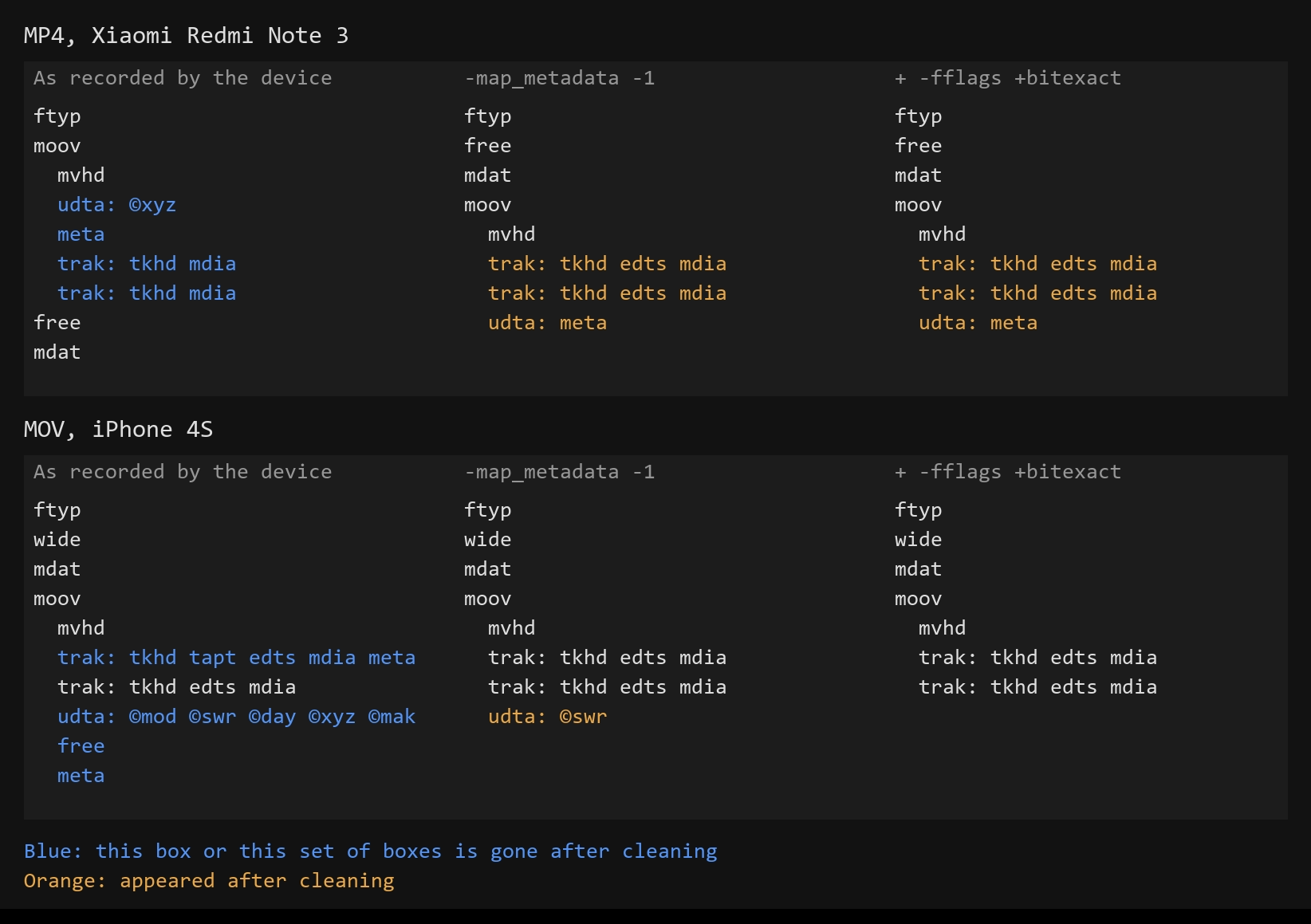
We listed the boxes of the videos before and after cleaning. Cleaning changes the structure, and noticeably. In the Xiaomi video, the box with the frames now sits at the start of the file and the description at the end. In the iPhone 4S video, the tapt box disappeared from the video track, and in the Xiaomi video an edts box appeared in the tracks. The second option changes the structure only a little: in MOV, the box with the signature disappears; in MP4, the boxes are the same and only their contents change. In other words, after cleaning, the file looks built in FFmpeg rather than shot on a phone. This can be recognized even when there is nothing to look at in the fields.
How to remove metadata from a whole folder of videos
The result is written to a new file, so each copy needs its own name. Otherwise, the hundredth copy would overwrite the first. In PowerShell, it takes two lines:
New-Item -ItemType Directory -Force clean
Get-ChildItem -Path * -Include *.mp4,*.mov | ForEach-Object { ffmpeg -i $_.FullName -map_metadata -1 -fflags +bitexact -c copy "clean\$($_.Name)" }
The loop uses the full command, with both options: the incomplete one would leave the muxer signature in every one of the hundred copies. iPhone footage is stored in .mov, so the mask has both extensions. With the *.mp4 mask alone, the loop would finish silently without touching a single file. Leave the originals where they are. You’ll need twice the disk space, but a failed batch won’t cost you your footage.
On a Mac, the loop is different. Run it in Terminal from the folder with the videos:
mkdir -p clean
for f in *; do case "$f" in *.mp4|*.MP4|*.mov|*.MOV) ffmpeg -i "$f" -map_metadata -1 -fflags +bitexact -c copy "clean/$f";; esac; done
You can’t use the short form with the *.mp4 *.mov mask here. In the Mac shell, a mask with no matches aborts the command with an error. Besides, the letter case of the extension matters there: *.mov won’t find IMG_0001.MOV. We tested both loops in the same shell, zsh. The short one aborted. The long one, with real FFmpeg, processed all the videos, including a video with a space in its name.
And check the whole folder, not just the first file. A full analysis won’t do here: on a hundred files, it’s a long output in which you can’t make anything out. Ask each file exactly one thing, whether the fields you cleaned it for are still there:
$serviceFields = "major_brand|minor_version|compatible_brands|handler_name|vendor_id|language="
Get-ChildItem -Path clean\* -Include *.mp4,*.mov | ForEach-Object {
    $left = ffprobe -v error -show_entries format_tags:stream_tags -of default=nw=1 $_.FullName |
        Select-String -NotMatch $serviceFields
    if ($left) { "FIELDS LEFT: " + $_.Name + " -> " + ($left -join ' ') }
}
Silence means the fields are clean. The recipe doesn’t see the hidden copy in old iPhones. After exiftool, it will report the remaining date but will say nothing about the model and coordinates inside the box with the frames. Query both the container fields and the track tags at once. Filter out of the output the service fields that always remain: the three container identification fields, the handler names, the muxer tag in the track and the language. Filtering by a list of names doesn’t work here. The device writes the same piece of information in several forms at once: location and location-ita. Apple devices also add com.apple.quicktime.location.ISO6709 to them. A list of names doesn’t cover every form. Nor does it cover the tracks, and that’s exactly where the most persistent leftovers are.
We ran the loop and the recipe exactly as printed, in PowerShell, with the FFmpeg 9.0.2 build from gyan.dev. The recipe passed over three fully cleaned copies silently, including a file with a space in its name. The muxer tag in the MOV track is still there, but the recipe lists it among the service fields. For the untouched iPhone 4S video, the recipe reported all the fields: the make, model and coordinates, each in three forms, the date in four, and the OS version. For the copy after the single option, the recipe reported encoder=Lavf63.1.102, and for the copy after exiftool, the recording date.
How to change video metadata, not just remove it
For privacy, cleaning is enough. But for someone who publishes a hundred copies on different accounts, the task is different: a hundred cleaned copies have identical containers. We found no evidence that platforms compare the fields of copies. So different values in the fields are insurance, not a requirement.
When we ran account networks on Instagram and X, cleaning the fields was the default step for every video. We didn’t want to carry service tags into the copies, such as the tags of the services the videos were downloaded through. We did not compare cleaned videos with uncleaned ones. We never removed the fields through file properties in File Explorer: there are programs like exiftool for that. We only processed videos a whole folder at a time. Mostly we just removed the fields, and the only value we replaced was the recording date. Back then, we didn’t know how to carry the fields from a real phone over to a video; otherwise we would have filled those in too.
A single field is changed with the same command. For example, the recording date:
ffmpeg -i input.mp4 -map_metadata -1 -metadata creation_time=2025-05-01T12:00:00Z -fflags +bitexact -c copy output.mp4
We tested it on the Xiaomi video. Both ffprobe and exiftool showed the new date, including in the file header. But here you get one value per command.
Nobody does this by hand: for every field of every copy, you would have to open the file, type the value, save and check it. Many people avoid the console. In related questions on a Russian-language Q&A site, people ask how to do it “without working in the console” 13 and look for a ready-made program rather than commands 14.
Video Unique Booster has ready-made metadata presets for this. A video gets the make, model and OS version of an iPhone, a Samsung or a Google Pixel. In the phone presets, the model and version are picked at random for each copy: the field holds not a single value but a list in curly braces, and each copy takes its own value from it. An entry like <<dateUTC>> works the same way, except that it inserts a date instead of a value from a list.
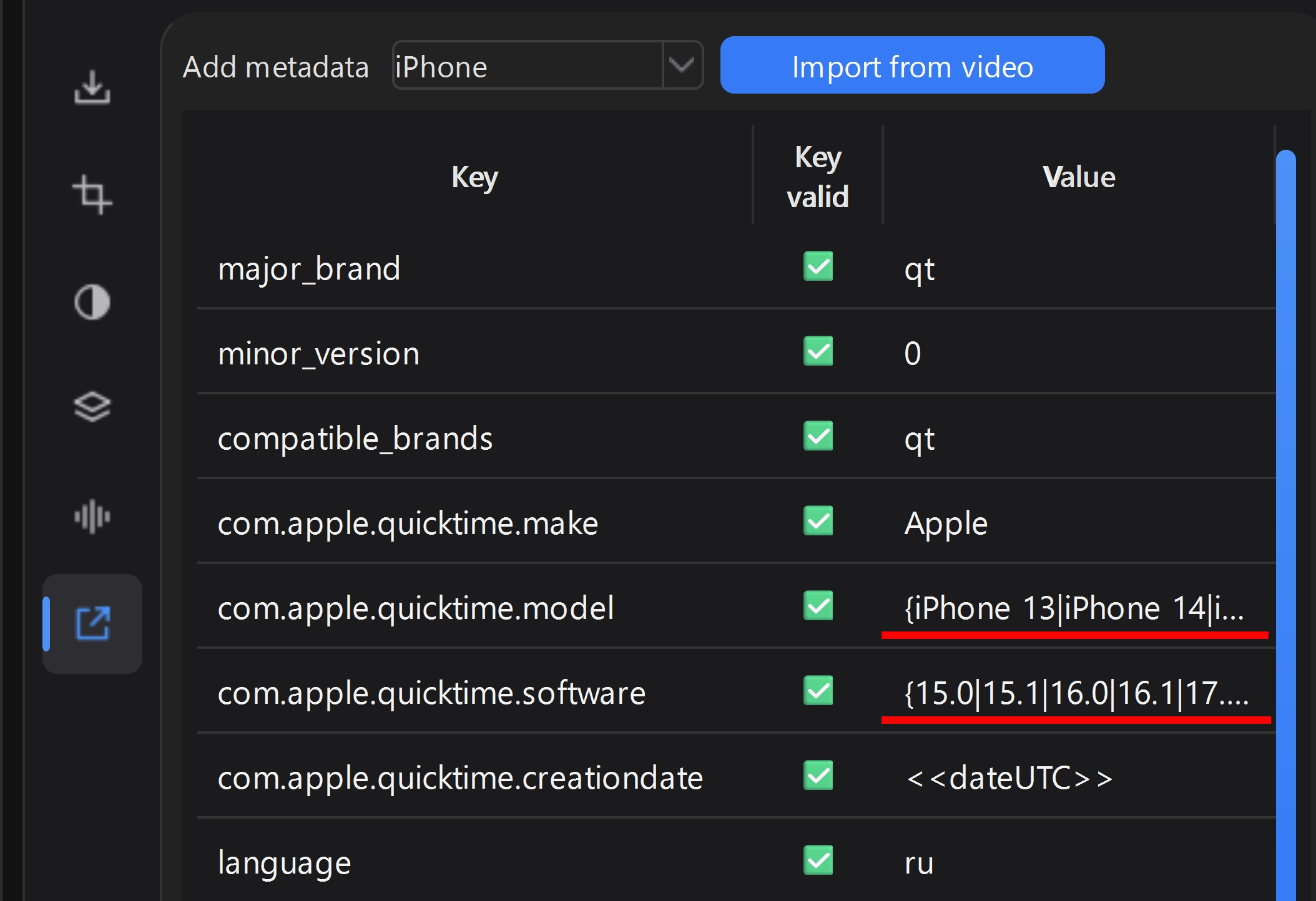
This is our program, so we tested it by the same standard as the three methods above. We built copies of the same three videos the way the program builds them in the “Local” mode, with the “iPhone” metadata preset. Nothing from the source remained in the copies: no model, no coordinates, no OS version. A byte search didn’t find them either. In their place are the make, model and OS version from the preset’s list and the date the copy was created. The signature of the video processing module stays in the copy’s encoder field, and the container also gets the language ru.
How to do it in the program:
- Click “Import video” and select your videos.
- In the “Metadata” section, choose a preset in the “Add metadata” list, for example “iPhone”. To take the fields from a video shot on your own phone, use the “Import from video” button.
- In the “Performance” section, choose “Minimum” in the “File compression” list.
- In the “Export” section, choose “Local” in the “Video creation mode” list.
- Click “Start”.

Keep in mind how this differs from the command. The program doesn’t copy the tracks unchanged; it compresses the frames again. If you need cleaning without re-encoding, use the FFmpeg loop above.
Where cleaning doesn’t help
People in Russian-language discussions complain about this directly: “I saw that you can delete the copyright in the file properties, but it doesn’t help!” 2.
The platform rebuilds the file itself. YouTube rewrites the color service fields if the source color space isn’t supported 6. Forensic analysts call files from YouTube “completely new files created by the website or platform” and immediately add a caveat: its encoders may repeat some of the values of the original file 7.
Two papers disagree about YouTube. The earlier method reaches a balanced accuracy of 0.60 on the platform’s videos, which the authors explain by the platform re-encoding the file 4. In the later paper, the same videos were identified without a single error. Its authors say the opposite: YouTube makes minimal changes to metadata 11. Hence our conclusion: the 0.60 accuracy reflected a limit of the earlier method. What to do is covered in our article how to make videos unique for YouTube (in Russian).
The platform’s policy doesn’t promise cleaning. According to TikTok, the platform collects associated metadata: who created the content, and when and where it was created 8. There is no promise to delete it.
Cleaning doesn’t touch the frames at all. From the frames alone, the platform is identified with an accuracy of 92.61% 9. The specific device is identified in 72.75% of cases 10. These are lab experiments: they were measured on a mix of untouched footage and copies from YouTube and WhatsApp.
Hence the limit of what cleaning can do. The full cleaning from the third method solves the privacy problem: the coordinates, device model and date no longer travel with the file. But it doesn’t make a video invisible. We covered separately what the TikTok algorithm (in Russian) looks at when it decides who to show a video to.
Questions and answers
Where to start
Take your video and check with the ffprobe command whether its fields contain the device model and coordinates.
If they do, clean a copy, not the original. For a single file, you need the command with both options, -map_metadata -1 -fflags +bitexact. The first option alone isn't enough: it leaves the muxer signature. Our program Video Unique Booster processes a whole folder without the console, and it picks the field values at random for each copy. If you are cleaning the file for privacy, set “Video creation mode” to “Local”. Then the video is processed on your computer and isn't sent to a server. In the “Cloud” and “Hybrid” modes, the program may send the whole video to the server, with all its fields, and it is stored there for 24 hours. The fields are removed only from the finished copy.
Next, read the guide for your platform, for example making videos unique for TikTok (in Russian).
Sources
The numbers in square brackets in the text refer to this list.
- Discussion of making videos unique (in Russian). zismo.biz forum, 2023. Forum thread ↩︎
- How to delete information about a video (in Russian). Pikabu, post 4590427. Post and comments ↩︎
- Exiftool, issue 136: the command does not erase QuickTime tags, 2022. GitHub issue ↩︎
- Yang P., Baracchi D., Iuliani M., Shullani D., Ni R., Zhao Y., Piva A. Efficient Video Integrity Analysis Through Container Characterization. IEEE Journal of Selected Topics in Signal Processing, 2020, vol. 14, pp. 947-954. arXiv preprint, journal version ↩︎
- Discussion of removing EXIF (in Russian). linux.org.ru, 2020. Forum thread ↩︎
- YouTube. Recommended upload encoding settings. YouTube Help ↩︎
- Magnet Forensics. Getting to the Source: Understanding Metadata Removal on Social Media, 2024. Blog post ↩︎
- TikTok. Privacy Policy, 2025 version. Policy ↩︎
- Maiano L., Amerini I., Ricciardi Celsi L., Anagnostopoulos A. Identification of Social-Media Platform of Videos through the Use of Shared Features. Journal of Imaging, 2021, vol. 7, issue 8, article 140. arXiv preprint, journal version ↩︎
- Bennabhaktula G. S., Timmerman D., Alegre E., Azzopardi G. Source Camera Device Identification from Videos. SN Computer Science, 2022, vol. 3. Journal version ↩︎
- Xiang Z., Horváth J., Baireddy S., Bestagini P., Tubaro S., Delp E. J. Forensic Analysis of Video Files Using Metadata. IEEE/CVF CVPR Workshops, 2021, pp. 1042-1051. arXiv preprint, journal version ↩︎
- Shullani D., Fontani M., Iuliani M., Al Shaya O., Piva A. VISION: a video and image dataset for source identification. EURASIP Journal on Information Security, 2017. Journal version ↩︎
- A question about moving the metadata to the start of the container, which also asks to do without the command line (in Russian). Habr Q&A, question 494970. Question and answers ↩︎
- A question about a program for compressing video on a phone, which also mentions not wanting to use the console (in Russian). Habr Q&A, question 1302918. Question and answers ↩︎
- Apple. Manage location metadata in Photos, Personal Safety User Guide. Apple Support ↩︎
- Google. Understand, find & edit your photos' locations, Google Photos Help. Google Help ↩︎
- MediaInfo. A program for viewing information about media files. Program page ↩︎
- PyAV. A Python library for reading containers, used to take the measurements in this article. Documentation ↩︎
- FFmpeg. A free set of programs for working with video;
ffmpegrebuilds the file,ffprobeshows the fields. Project page ↩︎ - ExifTool. A command-line program for reading and editing metadata. Program page ↩︎
- Gyan.dev. FFmpeg builds for Windows linked from the ffmpeg.org download page; the
Gyan.FFmpegpackage installs from them. Builds page ↩︎ - Homebrew. The
ffmpegformula for macOS. Formula page ↩︎ - Google. Change your camera location settings, Google Photos Help. Google Help ↩︎
